
Wingdings Keyboard
The Wingdings Keyboard lets you build symbol text one key at a time using Wingdings, Wingdings 2, Wingdings 3, or Webdings. Click or tap the on-screen keys, type with your physical keyboard, search for a symbol, and copy the finished result when it is ready.
The keyboard covers all 95 printable positions supported by each symbol set, including uppercase and lowercase letters, numbers, punctuation, and Space.
How to Use the Wingdings Keyboard
Choose a symbol set. Select Wingdings, Wingdings 2, Wingdings 3, or Webdings.
Enter symbols. Click or tap the virtual keys, or type with your physical keyboard.
Use Shift or Caps Lock when needed. Uppercase and lowercase positions can produce different symbols.
Edit the output. Move the cursor, delete characters, add spaces or line breaks, and continue composing.
Copy the result. Copy the complete composition or a single selected symbol.
The composition field works like a normal text editor, so symbols can be inserted, removed, rearranged, undone, or restored without rebuilding the string from the beginning.
Wingdings Keyboard Features
The keyboard is built around a few practical tasks: entering symbols, finding the right glyph, checking what a key represents, composing a usable string, and copying the result.
The tool supports Wingdings, Wingdings 2, Wingdings 3, and Webdings across all 95 printable ASCII positions in each set. You can use the on-screen QWERTY layout or a physical keyboard, with Shift, Caps Lock, numbers, punctuation, Space, Backspace, Delete, Enter, cursor movement, undo, and redo available while composing.
Search lets you find a glyph by familiar terms such as airplane, folder, snowflake, arrow, or skull. Category filters can narrow larger sets to groups such as hands, arrows, office symbols, weather signs, geometric shapes, or media controls. Recent and favorite symbols make repeated use faster.
Selecting a key can reveal its active symbol set, mapped keyboard character, Unicode representation, code point, and character name. A larger preview helps when small geometric or directional differences are difficult to see.
The output field preserves spaces and line breaks and supports insertion at the current cursor position. You can copy the full composition, select part of it, copy a single symbol, clear the field, or use a manual selection fallback when direct clipboard access is unavailable.
Changing between the four symbol sets updates the virtual keyboard while keeping the existing composition in place. The active set, Shift state, Caps Lock state, and most recently pressed key remain visible while you work.
The layout adapts to smaller screens with touch-friendly controls for Shift, Space, Backspace, and Copy. Keyboard navigation, visible focus states, semantic labels, screen-reader descriptions, accessible toggle states, copy-status announcements, and reduced-motion support make the tool usable without relying on mouse input alone.
Symbol selection and composition run in the browser without requiring an external translation API. When a device lacks a suitable glyph for a less-common Unicode character, the tool can flag the display issue instead of treating it as a mapping failure.
Switch Symbol Sets While You Type
The font selector changes the mapping used for new input. A key such as A therefore produces a different glyph when Wingdings 2, Wingdings 3, or Webdings is active.
Switching sets leaves the existing composition untouched. Any keys entered afterward use the newly selected map, which makes it possible to compare individual positions without losing earlier work.
The active set remains visible beside the keyboard so the current mapping is always clear.
If you need to compare the four collections themselves, Wingdings 1 vs Wingdings 2 vs Wingdings 3 vs Webdings shows how their symbol repertoires differ.
Shift, Caps Lock and the Full Keyboard Layout
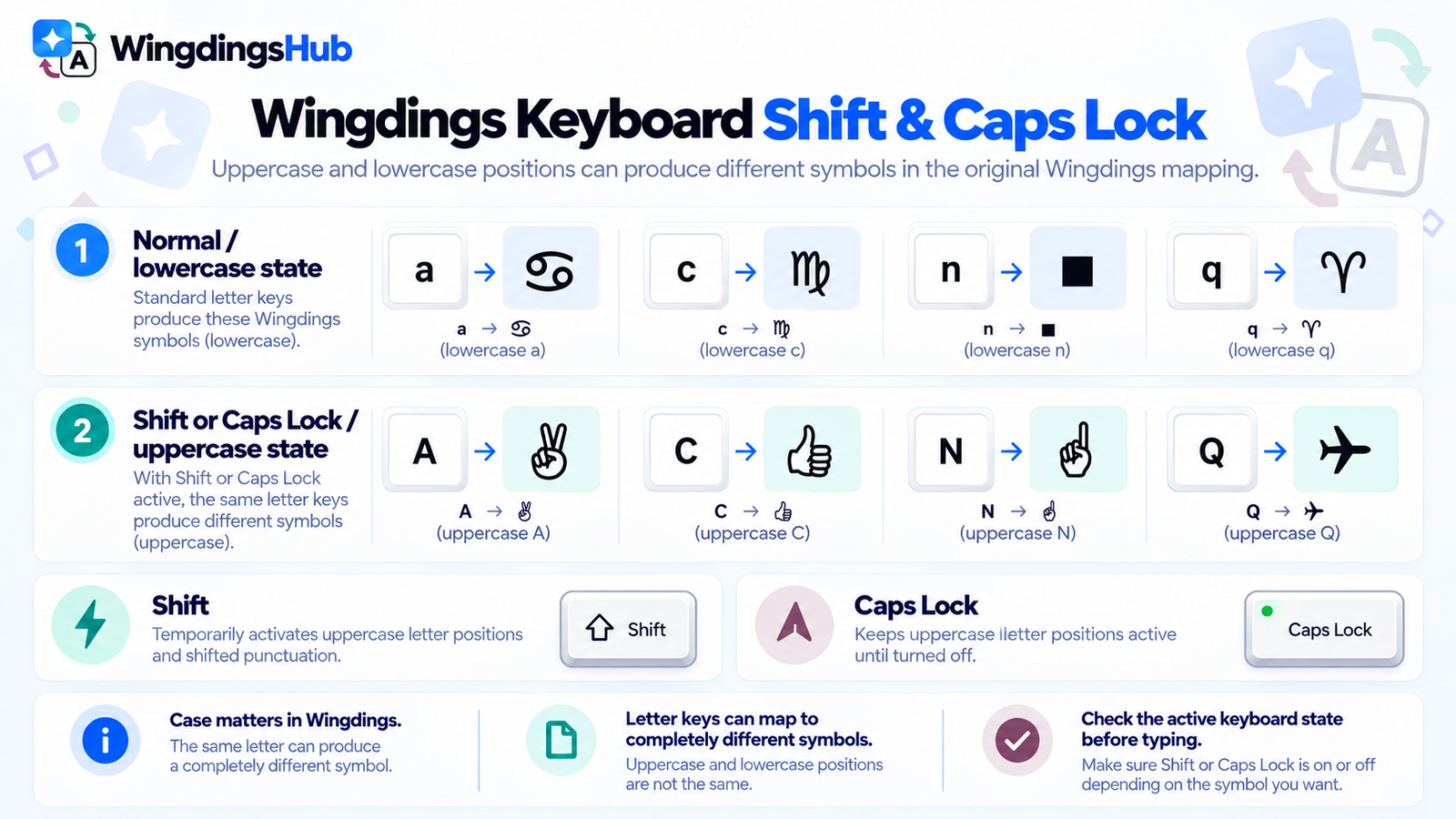
Letter case matters on a Wingdings keyboard because uppercase and lowercase character positions have separate symbol mappings.
Shift temporarily activates the shifted keyboard state. For letters, that selects the uppercase position. On number and punctuation keys, Shift exposes the character normally found on the upper part of that physical key.
Caps Lock keeps uppercase letter positions active until it is turned off, while the number and punctuation rows continue to follow normal Shift behavior.
For example, original Wingdings maps uppercase A to ✌ and lowercase a to ♋. The virtual keys update with the active state so you can see the available symbol before pressing it.
The Wingdings Alphabet & Character Map provides the complete original-Wingdings key reference when you need to inspect the mapping outside the interactive keyboard.
Find a Wingdings Symbol by Name
Sometimes you know the symbol you want but have no idea which keyboard key produces it. Search lets you start with the object or concept instead.
airplane
Q
snowflake
T
skull
N
folder
0
thumbs up
C
Selecting a search result highlights its key and opens the symbol details. Category filters provide another route when the exact name is unknown.
Use Your Physical Keyboard
The on-screen layout is useful for browsing, while longer strings are usually quicker to create with a physical keyboard.
When keyboard input is active, a normal keypress triggers the corresponding position in the selected symbol map. Pressing H, for example, inserts the active set’s uppercase H symbol rather than the letter H itself.
The physical and virtual states stay synchronized:
- holding physical Shift updates the virtual Shift state;
- Caps Lock changes the displayed letter layer;
- Backspace removes the character before the cursor;
- Delete removes the character after the cursor;
- Space inserts a normal word space;
- Enter starts a new line in the composition field;
- arrow keys move the text cursor without inserting symbols.
A visible active-input state helps prevent accidental key capture while you are interacting with another part of the page.
Copy and Reuse Your Symbol String
The composition field uses copyable Unicode representations of the selected Wingdings glyphs. You can copy the complete string, select part of it, or copy an individual symbol from its detail panel.
Spaces and line breaks remain intact, allowing short messages and multi-line arrangements to be composed directly in the keyboard.
The composition field uses copyable Unicode representations of the selected Wingdings glyphs.
You can copy the complete string, select part of it, or copy an individual symbol from its detail panel.
The same Unicode character can be drawn differently by another operating system, browser, or font. Some symbols may appear more colorful or use a slightly different shape after they are pasted elsewhere.
Wingdings and Unicode: Why Copy & Paste Works Differently explains what happens when these characters move between applications and devices.
Wingdings Keyboard or Wingdings Translator?
The two tools start from different user actions.
The Wingdings Translator is the better fit when you already have a complete phrase to encode or an existing symbol string to decode. The keyboard gives you direct control over individual keys and symbols.