How to Read Wingdings: Decode Wingdings Symbols Correctly
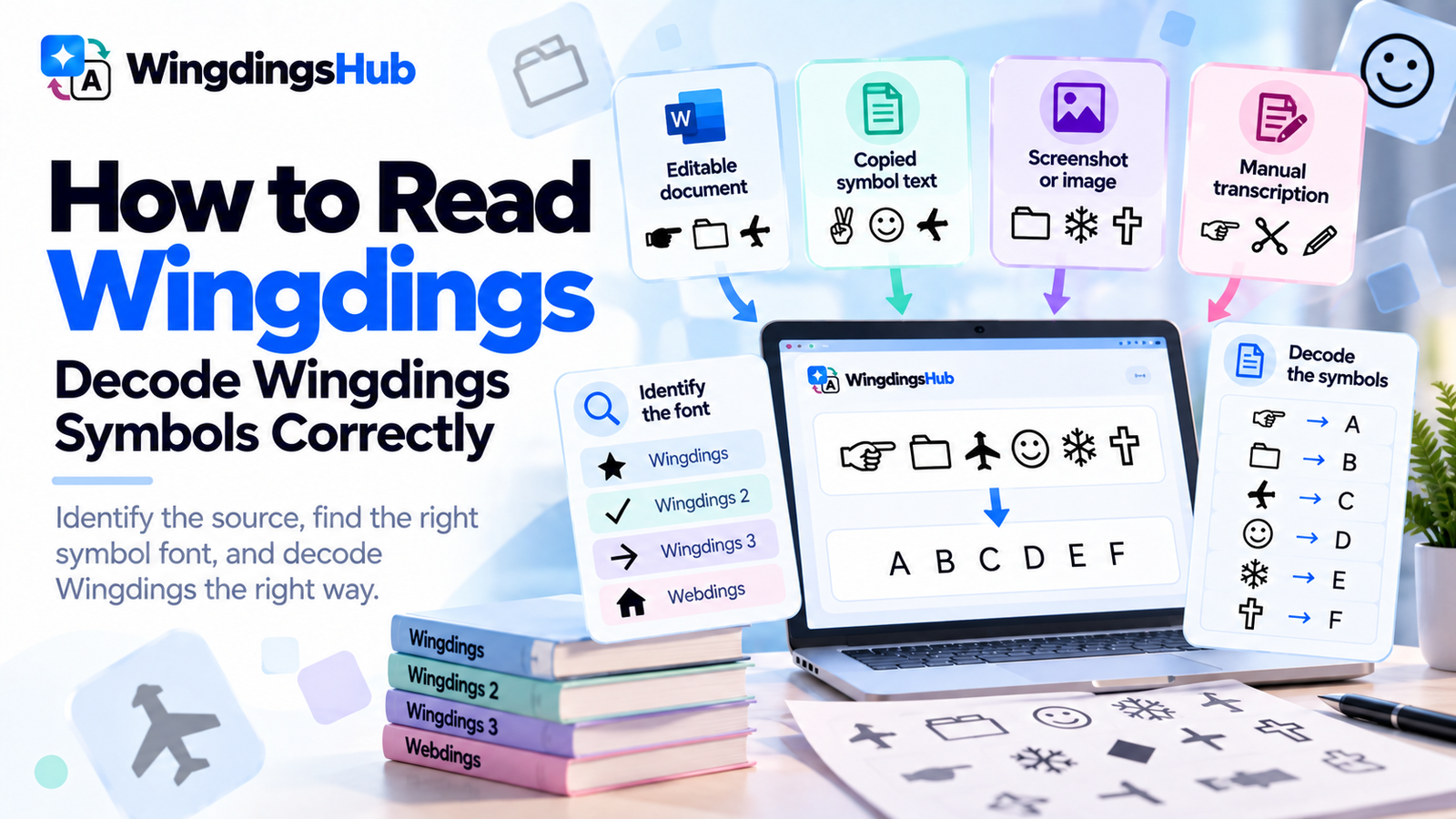
Reading Wingdings means recovering the character sequence represented by a set of symbols. The difficult part is often identifying what kind of source you have before applying a character map.
An editable Word document, a copied string of Unicode symbols, and a screenshot can look similar on screen while requiring different decoding methods. Font identity, symbol accuracy, spacing, and the source application can all affect the result.
For symbol text that can already be copied and pasted, the Wingdings Translator can decode Wingdings, Wingdings 2, Wingdings 3, and Webdings directly. The methods below are useful when the source is uncertain or the first result does not make sense.
Start by Identifying What You Actually Have
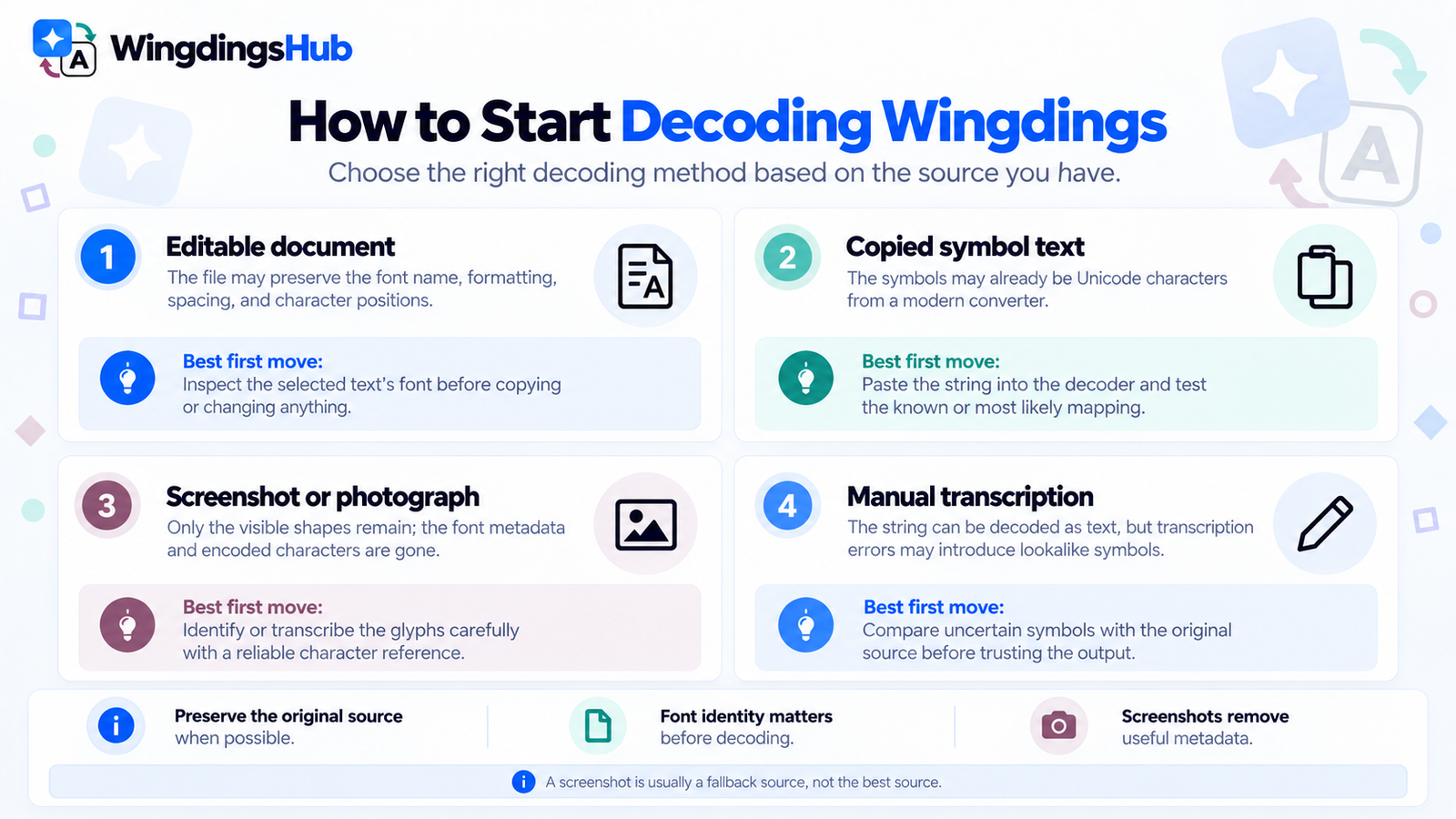
The source format often provides more useful evidence than the appearance of an individual symbol.
| Source | What You Can Learn From It | Best First Move |
|---|---|---|
| Editable document | The file may preserve the font name, original formatting, spacing, and character positions. | Inspect the selected text’s font before copying or changing anything. |
| Copied symbol text | The symbols may be actual Unicode characters produced by a modern converter. | Paste the string into a decoder and test the known or most likely mapping. |
| Screenshot or photograph | Only the visible shapes remain; font metadata and encoded characters are unavailable. | Identify or transcribe the glyphs carefully with a character reference. |
| Manually transcribed symbols | The string can be decoded as text, but transcription errors may have introduced lookalike characters. | Compare uncertain symbols with the original source before trusting the output. |
If the original file is available, preserve it. A screenshot should usually be treated as a fallback rather than a better source because it removes information such as the assigned font and underlying character data.
Find the Correct Symbol Font
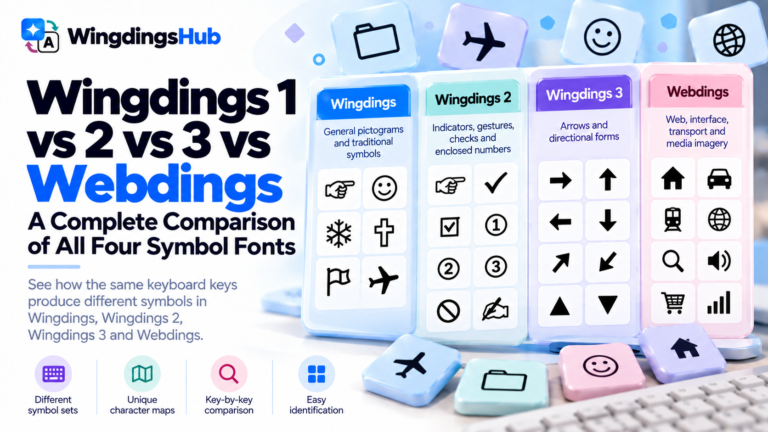
Wingdings is only one of several Microsoft symbol fonts people commonly group under the same name. Wingdings 2, Wingdings 3, and Webdings assign different glyphs to the keyboard positions, so font identification comes before reliable decoding.
When an editable document is available, the formatting information is the strongest clue. Select a portion of the symbol text and inspect the font name in the application.
With copied symbols or an image, visual characteristics can narrow the possibilities:
| Font | Useful Visual Clues |
|---|---|
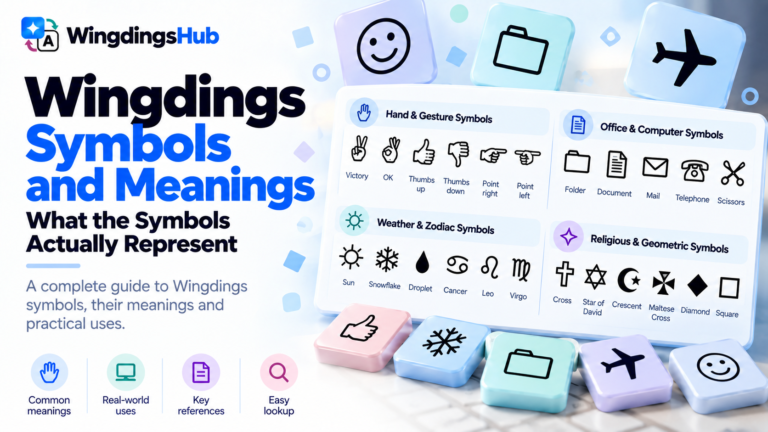
| Wingdings | Hands, faces, computer and office objects, weather signs, religious symbols, zodiac signs, geometric marks |
| Wingdings 2 | Pointing hands, pens, check marks, boxes, enclosed numbers, and indicator-style glyphs |
| Wingdings 3 | A strong concentration of arrows, arrowheads, triangles, and directional forms |
| Webdings | Buildings, transport, media controls, interface imagery, objects, and web-oriented pictograms |
Visual style is evidence rather than identification by itself. Some individual glyphs occur in more than one set. In WingdingsHub’s current mappings, for example, ⦸ appears at uppercase X in Wingdings 2 and lowercase x in Webdings. A single isolated symbol therefore may not contain enough information to establish its source.
The broader differences between the sets are documented in Wingdings 1 vs Wingdings 2 vs Wingdings 3 vs Webdings.
Decode the Symbol Sequence
Once the likely mapping is known, work from the symbols back to their mapped characters. Preserving the original sequence is more important than interpreting the pictures individually.
- Keep the source unchanged. Preserve spaces, punctuation, repeated symbols, and the exact order of the glyphs.
- Select the matching font map. Use the formatting information from the source when available; otherwise start with the strongest visual or contextual candidate.
- Convert the full sequence. A complete word or sentence gives more evidence than a single symbol and makes a wrong mapping easier to spot.
- Inspect anything that remains unchanged. It may be ordinary text mixed into the source, an unsupported character, or a symbol from another system.
- Compare the result with the source context. Sentence structure, punctuation, repeated words, and expected terminology can help confirm whether the mapping fits.
- Test another plausible map when necessary. A consistently poor result is stronger evidence of the wrong font than one unusual-looking character.
For one-character lookup, the Wingdings Alphabet & Character Map provides the complete original-Wingdings reference.
Use Auto-Detection as Evidence, Not a Verdict
Font detection becomes useful when the source contains copyable symbols but gives no information about which map produced them.
WingdingsHub’s Auto-detect compares the pasted characters with the reverse maps for Wingdings, Wingdings 2, Wingdings 3, and Webdings. It ranks the sets by how many symbols they recognize, giving additional weight to distinctive symbol characters.
A longer string with several font-specific glyphs usually provides stronger evidence than a one- or two-character sample. Shared characters reduce certainty.
When two or more fonts receive the same strongest score, the translator reports the tie. That result is useful: it tells you the available symbols cannot uniquely establish one supported map. Testing the tied candidates against the full message and its context is then the appropriate next step.
| Detection Result | How to Treat It |
|---|---|
| One font clearly matches most distinctive symbols | Use it as the leading candidate and verify the decoded text. |
| Two or more maps tie | Compare the decoded outputs and look for stronger source evidence. |
| Very few symbols are recognized | Recheck the transcription, source font, and whether the content is Wingdings-family text at all. |
| Only ordinary letters or punctuation are present | Automatic identification has little distinctive evidence to work with. |
Decoding Wingdings From a Screenshot
A screenshot removes the encoded characters and leaves only their rendered shapes. The first task is therefore transcription rather than translation.
The current WingdingsHub translator accepts text symbols; it does not perform image recognition. For a screenshot, match the visible glyphs against a reliable character reference and enter the corresponding symbols or mapped positions before decoding.
| Image Problem | Why It Matters | Better Approach |
|---|---|---|
| Low resolution | Small distinctions between similar glyphs can disappear. | Use the original screenshot or highest-resolution source available. |
| Heavy compression | Edges, fills, and small details can become distorted. | Prefer an original file over an image repeatedly shared through messaging apps. |
| Photograph taken at an angle | Perspective changes the apparent geometry of arrows, boxes, and hands. | Use a straight screenshot when possible. |
| Color or emoji rendering | A modern rendering can look quite different from the original monochrome font glyph. | Match the underlying symbol shape rather than its color or artwork style. |
| Cropped or missing spacing | Word boundaries can disappear even after the symbols are identified correctly. | Preserve visible gaps and line breaks during transcription. |
Generic OCR is built primarily around conventional writing systems and can confuse decorative or unusual pictograms. A clean manual comparison is often more dependable for a short Wingdings string.
Legacy Symbols Can Use Different Unicode Lookalikes
Older web converters sometimes represented Wingdings glyphs with Unicode characters that looked close enough at the time. Later Unicode additions made closer representations available for many legacy symbols.
As a result, two copied Wingdings strings can represent the same original mapping while containing different Unicode characters underneath.
| Mapped Character | Current WingdingsHub Symbol | Older Lookalike Accepted by the Decoder |
|---|---|---|
0 |
🗀 | 📁 |
B |
🖏 | 👌 |
H |
🖗 | ☟ |
N |
🕱 | ☠ |
S |
🌢 | 💧 |
\ |
🕉 | ॐ |
The WingdingsHub decoder recognizes these and several other legacy aliases. It also ignores Unicode text/emoji presentation selectors when matching symbols, so a presentation-style marker does not by itself prevent a recognized character from decoding.
For the technical differences between font-formatted Wingdings and portable symbol text, see Wingdings and Unicode: Why Copy & Paste Works Differently.
Mixed and Unrecognized Characters Need to Be Preserved
A useful decoder should leave uncertain input visible. WingdingsHub preserves characters it cannot match instead of silently removing them or assigning a guessed value.
This matters with strings that contain a mixture of symbol text and ordinary characters. A filename, number, punctuation mark, accented character, or another script may have been left intentionally in the source.
Unchanged output can also expose a transcription problem. If nearly every symbol decodes except one, compare that glyph with the source again before changing the entire font selection.
The current canonical maps cover the 95 printable ASCII positions from Space through ~. Characters outside that range remain as entered unless they are recognized decoder aliases.
How to Check Whether the Decoded Text Is Reliable
A readable result is encouraging, but source evidence should carry more weight than a convenient-looking word.
| Evidence | What It Adds |
|---|---|
| The source document names the font | Strong confirmation of which mapping to use. |
| Most or all symbols belong to one map | Supports a consistent font source. |
| Spaces and punctuation produce a coherent sentence | Supports the recovered character order and word boundaries. |
| Repeated symbol patterns become repeated letter patterns | Provides an internal consistency check across the message. |
| Several isolated glyphs require substitutions or guesses | Signals that the source, transcription, or selected mapping needs another review. |
| Another font produces an equally plausible result | Leaves the identification unresolved until stronger evidence is available. |
Context is useful for verification after the mapping has produced a candidate result. Starting with what you expect the message to say and choosing symbols to fit that expectation makes transcription errors much easier to overlook.
When the Original Font Cannot Be Identified
Some sources simply do not contain enough information for certainty. A single shared glyph, a blurred screenshot, or a manually copied symbol can fit more than one mapping.
In that situation, preserve the unresolved possibilities. Decode the complete string under each plausible font, compare the number of recognized characters, inspect the source for additional glyphs, and use any available document metadata or surrounding context to narrow the choice.
A result can also remain genuinely ambiguous. Recording that uncertainty is more accurate than assigning a definite character where the source does not support one.