How to Type and Use Wingdings in Word, Excel, Google Docs, Windows & Mac
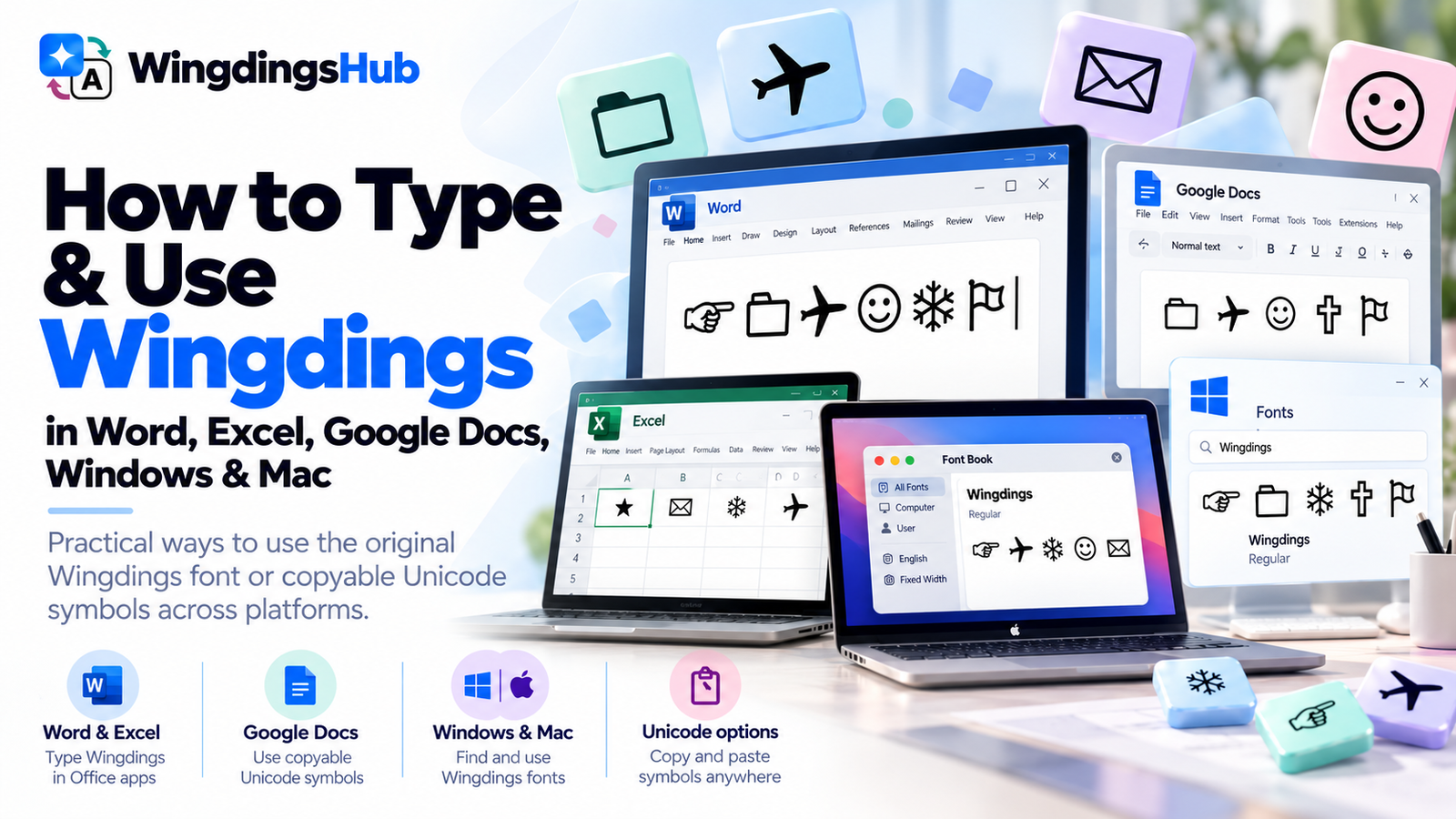
Wingdings can be used in several different ways depending on the application. Microsoft Word and Excel can work with the actual Wingdings font when it is available on the computer. Google Docs uses a different font system, so Wingdings-style content is more practical there as copyable Unicode symbols.
The method you choose should match the result you need: original Wingdings font formatting inside a document, a single inserted symbol, or portable symbols that can be pasted into other apps.
| Where You Are Working | Practical Method |
|---|---|
| Word on Windows | Select Wingdings as the font, or insert an individual glyph through the Symbol dialog. |
| Excel on Windows | Apply Wingdings to cells or insert individual symbols through Insert > Symbol. |
| Word or Excel on Mac | Use Wingdings when it is available to Office, or insert symbols through the application’s symbol controls. |
| Google Docs | Use copyable Unicode representations rather than relying on the Microsoft Wingdings font. |
| Browser, chat, or social app | Use Unicode symbol output from the Wingdings Translator or Wingdings Keyboard. |
How to Type Wingdings in Microsoft Word on Windows
Microsoft lists Wingdings as a font supplied with current Windows versions and available within Office applications. On a typical Windows installation, you can therefore use it directly from Word’s font menu.
To type new Wingdings text:
- Open the Word document and place the cursor where the symbols should begin.
- Open the Font menu on the Home tab.
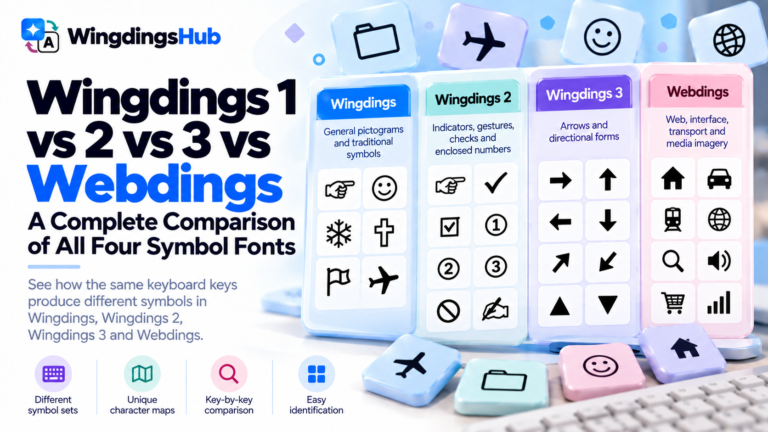
- Select Wingdings. Wingdings 2 and Wingdings 3 appear separately when those fonts are available.
- Type the required keyboard characters.
- Switch back to your normal text font when you are finished.
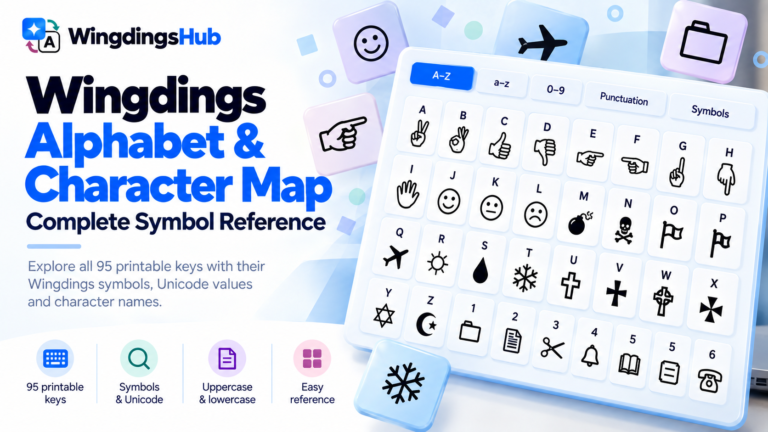
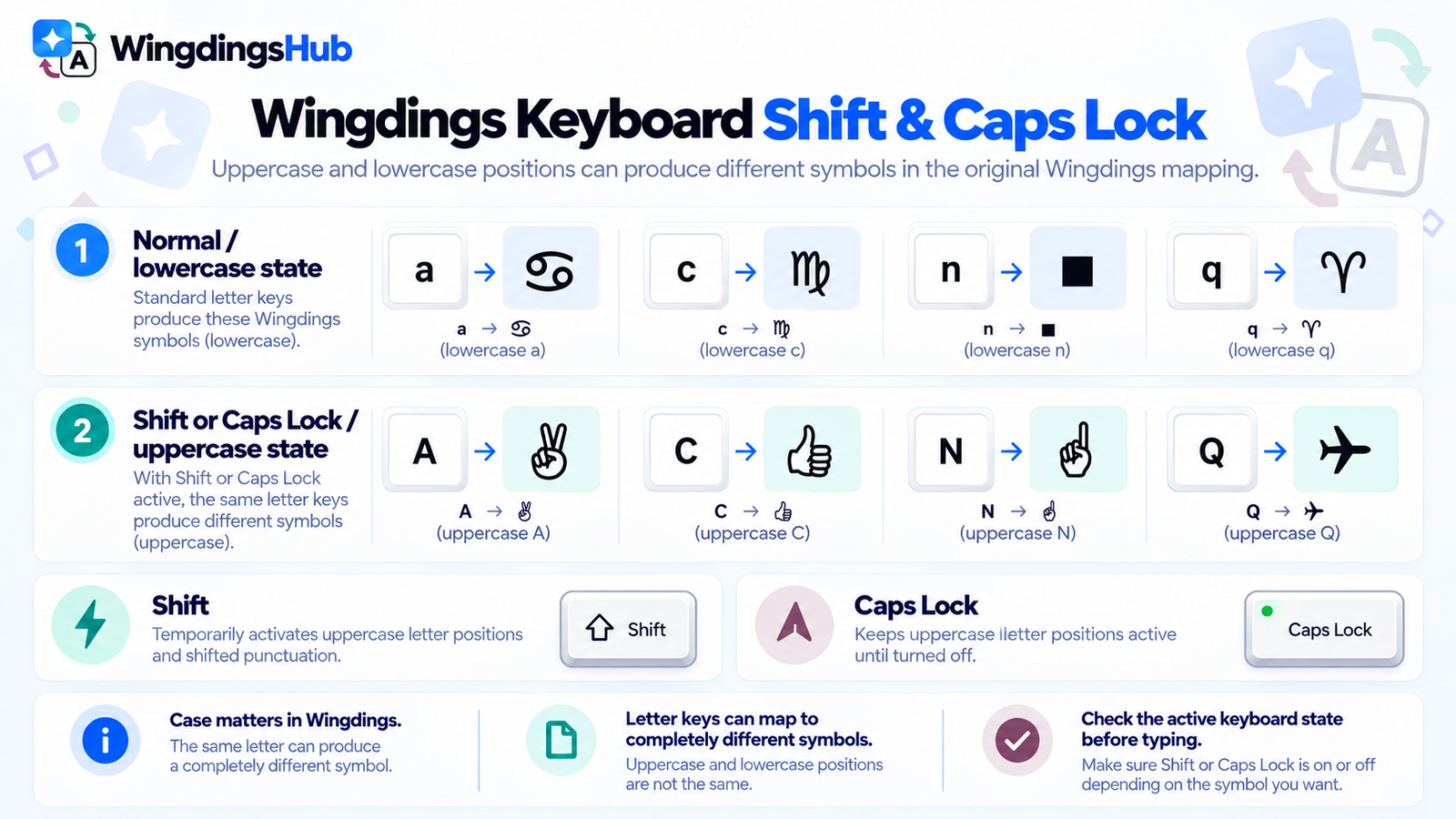
The keyboard character determines which Wingdings glyph appears. For example, uppercase Q in the original Wingdings mapping produces the airplane glyph, while other keys produce hands, folders, weather signs, geometric shapes, and other symbols.
If you already know the symbol but not its key, the Wingdings Alphabet & Character Map provides the complete original-Wingdings lookup.
Convert Existing Text to Wingdings in Word
Word can also apply Wingdings to text that has already been typed.
- Select the text you want to display with Wingdings.
- Open the Font menu.
- Choose Wingdings, Wingdings 2, or Wingdings 3.
Word then displays the selected character positions with glyphs from that font. Changing back to the previous font restores the normal visual forms of the underlying text.
This approach is useful when creating a puzzle, testing a mapping, or working with an existing document that uses Wingdings formatting.
Insert One Wingdings Symbol in Word
For a single glyph, the Symbol dialog is often faster than switching the font for an entire section.
- Place the cursor where you want the symbol.
- Go to Insert > Symbol > More Symbols.
- Choose Wingdings from the Font list.
- Find the required glyph.
- Select Insert.
The same dialog can be used to browse Wingdings 2 or Wingdings 3 by changing the selected font.
Microsoft also supports numeric character entry in Word for symbol fonts. For ordinary use, however, the Symbol dialog or a verified key map is less error-prone because the intended glyph is visible before insertion.
How to Use Wingdings in Excel on Windows
Excel can display Wingdings inside cells in much the same way Word does.
To type Wingdings directly into a cell:
- Select the cell or range where the symbols will be used.
- Choose Wingdings from the Font menu on the Home tab.
- Enter the required characters.
You can also type the content normally first and apply Wingdings to the selected cells afterward.
This is useful for compact visual markers inside worksheets, such as arrows, boxes, hands, or other symbols. Keep in mind that a Wingdings glyph inside a cell is still font-formatted content, so changing that cell to another font changes how the underlying character is displayed.
Insert an Individual Wingdings Symbol in Excel
Excel provides a Symbol dialog for inserting a single character without changing an entire worksheet region.
- Select the destination cell.
- Open Insert > Symbol.
- Select Wingdings in the Font box.
- Choose the required glyph.
- Select Insert.
Microsoft itself uses this method in its instructions for inserting check marks in Excel. Other Wingdings characters can be inserted through the same font selector.
Using Wingdings in Word and Excel on Mac
Microsoft Office for Mac can use fonts that are available to the application. Start by checking the font list in Word or Excel for Wingdings, Wingdings 2, or Wingdings 3.
In Word for Mac, individual symbols can also be inserted through:
Insert > Advanced Symbol > Symbols
Select the required font in the symbol window and choose the glyph you want.
Excel for Mac also provides symbol insertion through the Insert > Symbol command. Depending on the current macOS and Office version, the interface can use macOS’s expanded character and symbol viewer.
If Wingdings is already available in the font list, you can select it and type in the same way as in Word or Excel on Windows.
Check Wingdings With Font Book on Mac
macOS manages locally available fonts through Font Book.
Open Font Book and search for Wingdings. If the font is installed and active, applications that support local fonts can normally access it.
Font Book can also validate installed font files and detect problems or duplicate copies. macOS supports common font formats including TrueType and OpenType.
If you legitimately have a font file that needs to be installed:
- Open the file in Font Book or choose File > Add Fonts to Current User.
- Review any validation warning displayed by macOS.
- Install the font for the appropriate user account.
- Reopen the application if its font list has not refreshed.
For Wingdings specifically, use the copy supplied through your Windows or Microsoft Office environment, or another properly licensed source. Random third-party font-download sites can provide altered, outdated, or unauthorized files.
Can You Use the Wingdings Font in Google Docs?
Google Docs handles fonts differently from desktop Word and Excel. Its font menu uses supported web fonts and a limited set of compatible system fonts. Users cannot upload an arbitrary local font file and add it to Docs as a normal document font.
That means installing Wingdings on your Windows PC or Mac does not automatically make it available as a selectable Wingdings font inside Google Docs.
For Wingdings-style content in Docs, the practical method is to use Unicode symbols:
- Create the required symbols with the Wingdings Translator or Wingdings Keyboard.
- Copy the symbol string.
- Paste it into the Google Doc.
- Check the appearance in the document, especially for less-common symbols.
These pasted characters behave as Unicode text rather than as text formatted with Microsoft’s Wingdings font. Their exact appearance can vary with the fonts and rendering available in Google Docs and on the viewer’s device.
Google Docs also has its own Special characters interface for inserting general Unicode symbols. It can be useful when you need a common symbol directly, but it does not reproduce the Wingdings keyboard mapping.
Check Whether Wingdings Is Installed on Windows
Microsoft currently lists Wingdings among the fonts supplied with Windows 11, as well as earlier Windows releases.
To check the fonts available on Windows 10 or Windows 11:
- Open Settings.
- Go to Personalization > Fonts.
- Search for Wingdings.
The Wingdings family uses separate font files for Wingdings, Wingdings 2, and Wingdings 3, so the available entries can be inspected individually.
Most current Windows users should not need a separate Wingdings download. If a Microsoft-supplied font is unexpectedly missing, first check the Windows or Office installation rather than replacing it with an unknown web download.
Use the Keyboard When You Know the Key, and the Symbol Dialog When You Don’t
There are two efficient ways to work with the actual font.
If you already know the mapped character, select Wingdings and type that key. This is fastest when entering several symbols or reproducing known Wingdings text.
If you are searching visually for one glyph, Word or Excel’s Symbol dialog lets you browse the font first. The Wingdings Keyboard provides the same key-oriented approach in the browser, with search and symbol details for the supported mappings.
For example, someone who wants the original Wingdings airplane can look it up, find that it occupies uppercase Q, then type Q while Wingdings is selected in Word.
Sharing Documents That Use Wingdings
A document can preserve its Wingdings appearance while it remains in an environment that has the required font and retains the formatting. Problems usually appear when the content moves into plain text, a web editor, or a device with different font support.
| What You Need to Preserve | Practical Approach |
|---|---|
| An editable Word or Excel document using the original font | Keep the document in its formatted Office format and check it on the recipient’s system. |
| Symbols that need to survive as plain text | Use corresponding Unicode symbol text where appropriate. |
| The exact visual layout | Use a fixed-layout export or image when editability is less important than appearance. |
| A Wingdings string for Google Docs or web use | Convert it to copyable Unicode representations first. |
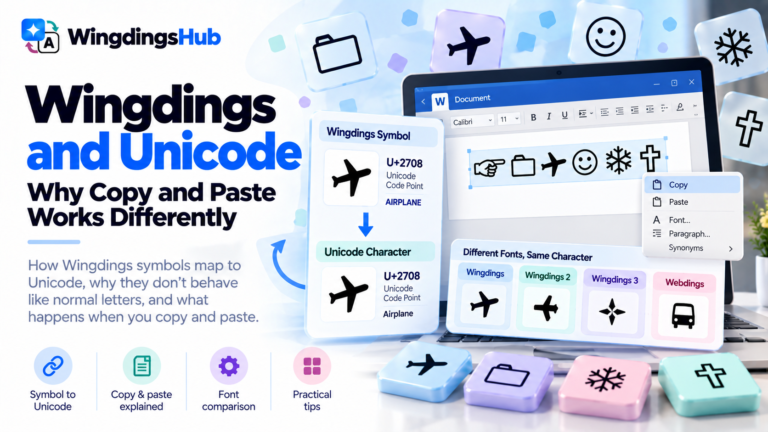
Wingdings and Unicode: Why Copy & Paste Works Differently covers the underlying compatibility issues in detail.
Common Wingdings Problems in Word, Excel, Google Docs and Mac
| Problem | What to Check |
|---|---|
| Wingdings is missing from Word or Excel | Check whether the font is installed and active in Windows Fonts or macOS Font Book. |
| Changing the font produces unexpected symbols | Confirm whether you selected Wingdings, Wingdings 2, or Wingdings 3. Their mappings differ. |
| Normal letters appear after pasting | The destination may have removed the Wingdings font formatting. Use a formatted document or Unicode symbols according to the intended use. |
| Google Docs does not offer Wingdings in the font list | Use Unicode representations for the symbols you need; Docs does not provide arbitrary custom-font upload. |
| A pasted symbol changes appearance | The receiving app or operating system may be drawing the same Unicode character with a different font. |
| A square or missing-glyph box appears | The current environment may lack a font that covers that Unicode character. |
| The Symbol dialog does not show the expected glyph | Check the font selected inside the dialog before searching the grid. |
| A Mac application does not show an installed font | Confirm that it is active and valid in Font Book, then reopen the application. |